Sunday, May 10, 2015

Google Tag Manager with ASP.NET MVC – Tracking Page views


Google tag manager makes life so easier for use Google analytic. Because of GTM, marketers can handle the Google analytics without the help of web developer. In this post describe how to use Google tag manager with ASP.NET MVC to track page views of a web application. Setting up the GTM is simple and needs to create the container and put that JavaScript code in your base HTML page. When you use GTM, you have to deal with tags, rules and macros. Every tag must contain a rule to fire. Rule require a certain condition to trigger.

Let's go down with following steps to setup GTM with MVC applications.

1. Login into the Google tag manager and create the container. Enter account name and container name as below.

1

2

2. After create GTM container looks like as in below image. Container id shown with red color boxes.

3

3. Go to your “_Layout.cshtml” page of the MVC application. Copy and paste container content as shown in below, just right after opening tag of “<body>”. In this image shows red color box highlighting the GTM container id. This is a unique id and GTM and application use this id for communication.

4

4. Now you have to publish your application. I used my azure account to publish the application. After you successfully publish you will get your application URL. Using that URL sign up with Google analytic account. After successfully setup the analytic account, you can get your tracking id for the web application. Use the tracking ID to create GTM tags.

6

5. Create a tag as shown in below using analytic tracking ID. Select Tag type as “Universal Analytics” and track type as “Page View”

7

6. Add a rule for this tag as below. this rule will execute when relevant tag fire.

8

7. After all above steps publish your GTM. After you can see the results in your Google analytics dashboard.

Sunday, May 3, 2015

Code snippet plugin for Live Writer on Blogger


I started to use windows live writer as my blogging tool. When I'm starting to use it, I had to face one problem which was how I'm going to publish the articles with code snippets. I’m using Blogger as my blog engine. So plugin I'm looking for must work with blogger too. After few search in the Google, I found few plugins to use code snippets with blog articles. One thing I noticed from all of those tools was none of them not updated very recently. In the end, I selected one tool to use with my live writer for blogging. You can check it from the below link.

https://sourcecodeplugin.codeplex.com/

This tool uses SyntaxHighlighter version 3. That was one of the main reason to select this tool. Because most of other tools not updated with SyntaxHighlighter version 3. When you are going to use this plugin for the first time with the live writer it pops up an error message saying “Can't load configuration from 'C:\Users\username\AppData\Roaming\Windows Live Writer\WindowsLiveWriter.SourceCode.config file”. What you have to do is ignore that error and move forward. And it won't appear in the after the first time. This is something known issue and writer of this plugin discuss this in the discussion section in CodePlex site.

Earlier when I want to put code snippet to the blog post I had to keep the code with SyntaxHighlighter tags. Now I don’t need to worry about that. this new plugin does it for me. Now blogging become easier than previous.

Saturday, May 2, 2015

Windows live writer on Blogger


After a long time back I tried to use windows live writer as my blogging tool. I used it early days and suddenly I missed it. So after I install windows live writer 2012 (latest version) I tried connect with my blog. My blog engine is a blogger. I entered correct URL, username and password. I checked that with the browser as well to verify details are correct or not. I tried 2 or 3 times but no luck. I search in the Google and I couldn’t find the good solution for this matter. because of that I thought to write about this then this might be helpful to someone else. The below image shows the error message.

dd

After all the attempts, I found the solution. In my Google account, I activated the 2-way verification system to my Google account for unknown applications and devices. When I'm logging through unknown device’s browser I get the security code and I enter it can use the particular Google service.  But with live writer there is no any method to use it that way. Because of that I need to go to below link and add live writer. Then I get generated password by Google. I have to use it for the sign in with live writer and blogger.

https://security.google.com/settings/security/apppasswords

After complete above steps, I logged in successfully with my live writer and the blogger. So here after all blog post will come through the live writer.

Happy blogging. Ohhh yeahh Winking smile

Tuesday, March 17, 2015

Angular Style Guide by John Papa


AngularJs is a MVC framework use by front-end. This is getting popular among developers for front-end developers because of it rich set of capabilities. Normally when we do the development in back-end development almost every time we are trying to use the best practices and gaudiness as a discipline of the developers. So I thought about the same way about the angular. I looked around the web for that kind of guidelines and best practices for AngularJs. That time I found the set of guidelines given by john papa. I don’t say we should follow of them. Based on the scenario, application and our requirement we can use it for front-end development. So im going to share that link with you guys.

Here we go : https://github.com/johnpapa/angular-styleguide#naming

Happy Coding Folks.

Sunday, November 2, 2014

Error in SharePoint 2013 Visual Web Part : The name "InitializeControl" does not exit in the current context.

When I was do development in the SharePoint 2013, I added visual web part. I worked with VS 2013. When I was try to build the project I got the following error.


This error occurred because of missing the visual web part designer file of type "ascx.g.cs". I did a Google search about this error. All those approaches didn't help me to solve this error. Following shows some links I followed.

http://samer-othman.blogspot.com/2013/03/how-to-fix-error-name-initializecontrol.html
http://sharepoint.stackexchange.com/questions/57034/the-name-initializecontrol-does-not-exist-in-the-current-context-error-when
http://vasya10.wordpress.com/tag/initializecontrol/
http://www.psclistens.com/blog/2014/4/the-dreaded-%E2%80%9Cthe-name-%E2%80%98initializecontrol%E2%80%99-does-not-exist-in-this-context%E2%80%9D-error-when-working-with-visual-web-parts-in-visual-studio-2012.aspx

Solution

My SharePoint solution runs under "SpSetup" user. I checked this user has permission on content DB of the SharePoint site I'm pointing to host Visual Web Part. Then I see that doesn't had the permission to the content DB. I gave the permission to that user as "db_owner" in content DB.


After that I removed the visual web part from the solution and add new one with same name and with the same content. Bang... "ascx.g.cs" file showed up with visual web part. Later I build the solution and it ended in successfully.

Wednesday, October 15, 2014

Customize ASP.NET Identity

In ASP.NET used several methodologies for authentication and authorization for the user. First used ASP.NET membership system then ASP.NET simple membership system. After that used ASP.NET Universal Providers. After all of these methodologies now Microsoft recommend to use ASP.NET Identity which is introduce with eliminating most of faults and loopholes contain with previous methods. You can read about more information from here.

In this post I'm going to shows the way of customize the ASP.NET identity match with our own business scenario.When you create the MVC application using default template in Visual Studio, it creates the schema using code-first method for authentication and authorization. In this post I'm going to show how customize the role entity, user entity and use our own database for the schema. First create the empty MVC project like in below.


Then install following packages from NuGet as shown in below. 


First of all create the custom user class and custom role class. Custom user class inherit from IdentityUser and Custom role class inherit from IdentityRole. Following shows CustomIdentityUser class. FirstName and LastName added to the custom user class. Like this we can add any custom field we need according to the business scenario.
public class CustomIdentityUser : IdentityUser
 {
  public string FirstName { get; set; }
  public string LastName { get; set; }
 }

Following shows CustomIdentityRole class. In here Description added to the custom role class.

public class CustomIdentityRole : IdentityRole
 {
  public string Description { get; set; }

  public CustomIdentityRole()
  { 
  }

  public CustomIdentityRole(string roleName, string description) : base(roleName)
  {
   this.Description = description;
  }
 }

After that create custom DB context as shown in below.
 public class CustomIdentityDbContext : IdentityDbContext
 {
  public CustomIdentityDbContext() : base("connectionString")
  {

  }
 }

Then create new database and create the connection string in web.config file as shown in below. In this example my custom DB name is CustomIdentityDb.


After these steps create OWIN startup class like shown in below. Go to add new items under project and add startup class. This class configure authentication scheme and uses cookie based authentication method in here. Path string point to the security controller action.
public class OwinStartup
 {
  public void Configuration(IAppBuilder app)
  {
   CookieAuthenticationOptions options = new CookieAuthenticationOptions();
   options.AuthenticationType = DefaultAuthenticationTypes.ApplicationCookie;
   options.LoginPath = new PathString("/security/Register");
   app.UseCookieAuthentication(options);
  }
 }

After create OWIN start up class should creates model classes needs for view pages. Model class creates under model folder in project template which are Login and Register.
public class Login
 {
  [Required]
  [Display(Name = "User name")]
  public string UserName { get; set; }

  [Required]
  [DataType(DataType.Password)]
  [Display(Name = "Password")]
  public string Password { get; set; }

  [Display(Name = "Remember me?")]
  public bool RememberMe { get; set; }
 }

public class Register
 {
  [Required]
  public string UserName { get; set; }

  [Required]
  public string Password { get; set; }

  [Required]
  [Compare("Password", ErrorMessage = "The password and confirmation password do not match.")]
  public string ConfirmPassword { get; set; }

  [Required]
  [EmailAddress]
  public string Email { get; set; }

  public string FirstName { get; set; }

  public string LastName { get; set; }
 }

In these models uses basic validation against model properties. Next step is creation of Security controller. Following code snippets shows security controller which contains the login, logout and register actions. Login and register action contains with GET and POST actions. In this application create another controller called ''Home" and redirect success logins to that controller.
 public class SecurityController : Controller
 {

  private UserManager userManager;
  private RoleManager roleManager;

  public SecurityController()
  {
   CustomIdentityDbContext db = new CustomIdentityDbContext();

   UserStore userStore = new UserStore(db);
   userManager = new UserManager(userStore);

   RoleStore roleStore = new RoleStore(db);
   roleManager = new RoleManager(roleStore);
  }

  // GET: Security
  public ActionResult Index()
  {
      return View();
  }

  public ActionResult Register()
  {
   return View();
  }

  [HttpPost]
  [ValidateAntiForgeryToken]
  public ActionResult Register(Register model)
  {
   if (ModelState.IsValid)
   {
    CustomIdentityUser user = new CustomIdentityUser();

    user.UserName = model.UserName;
    user.Email = model.Email;
    user.FirstName = model.FirstName;
    user.LastName = model.LastName;

    IdentityResult result = userManager.Create(user, model.Password);

    if (result.Succeeded)
    {
     userManager.AddToRole(user.Id, "Administrator");
     return RedirectToAction("Login", "Security");
    }
    else
    {
     ModelState.AddModelError("UserName", "Error while creating the user!");
    }
   }
   return View(model);
  }

  public ActionResult Login(string returnUrl)
  {
   ViewBag.ReturnUrl = returnUrl;
   return View();
  }

  [HttpPost]
  [ValidateAntiForgeryToken]
  public ActionResult Login(Login model, string returnUrl)
  {
   if (ModelState.IsValid)
   {

    CustomIdentityUser user = userManager.Find(model.UserName, model.Password);
    
    if (user != null)
    {
     IAuthenticationManager authenticationManager = HttpContext.GetOwinContext().Authentication;
     authenticationManager.SignOut(DefaultAuthenticationTypes.ExternalCookie);
     ClaimsIdentity identity = userManager.CreateIdentity(user, DefaultAuthenticationTypes.ApplicationCookie);
     AuthenticationProperties props = new AuthenticationProperties();
     props.IsPersistent = model.RememberMe;
     authenticationManager.SignIn(props, identity);
     if (Url.IsLocalUrl(returnUrl))
     {
      return Redirect(returnUrl);
     }
     else
     {
      return RedirectToAction("Index", "Home");
     }
    }
    else
    {
     ModelState.AddModelError("", "Invalid username or password.");
    }
   }

   return View(model);
  }

  [HttpPost]
  [Authorize]
  [ValidateAntiForgeryToken]
  public ActionResult LogOut()
  {
   IAuthenticationManager authenticationManager = HttpContext.GetOwinContext().Authentication;
   authenticationManager.SignOut();
   return RedirectToAction("Login", "Security");
  }

  }
}
Now creates views for the login and register actions using scaffolding. After these steps create helper class for the role creation and call it from application start.
public static void CreateRoles()
  {
   CustomIdentityDbContext db = new CustomIdentityDbContext();

   RoleStore roleStore = new RoleStore(db);
   RoleManager roleManager = new RoleManager(roleStore);

   if (!roleManager.RoleExists("Administrator"))
   {
    CustomIdentityRole newRole = new CustomIdentityRole("Administrator", "Administrators can add, edit and delete data.");
    roleManager.Create(newRole);
   }

   if (!roleManager.RoleExists("Operator"))
   {
    CustomIdentityRole newRole = new CustomIdentityRole("Operator", "Operators can only add or edit data.");
    roleManager.Create(newRole);
   }
  }

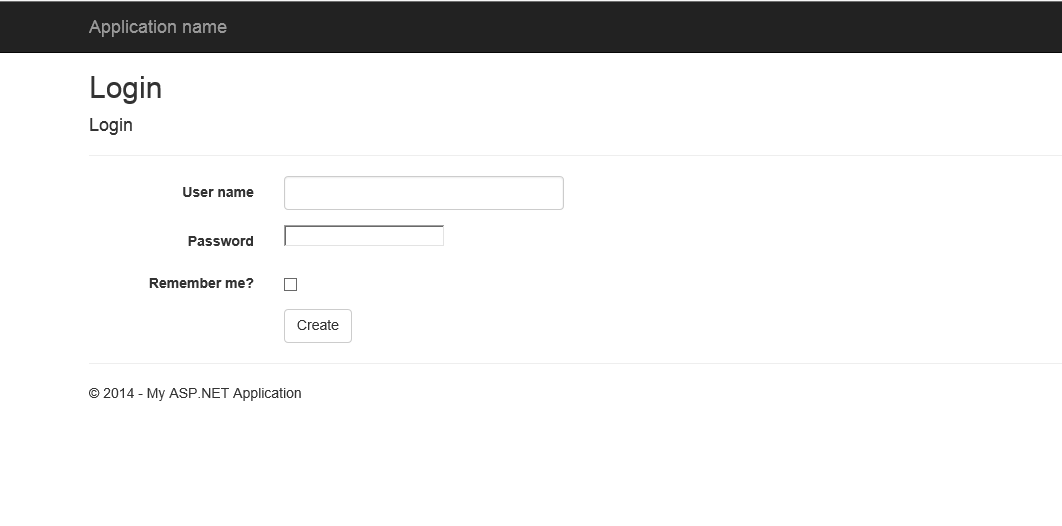
Let's test the application now. After you first run the application all tables needs for operate ASP.NET identity creates in DB. Following shows images of testing of this application.

Database table

Registration view with custom fields

Login view

Wednesday, September 3, 2014

Mobile Apps: Develop once and Run in all platforms

All most every mobile developer would like to reach large audience with all platforms. But the blocker for that approach is each time they want to develop the app again. So it take effort and time. In this kind of a scenario c# developers can use Xamarin and Apache Cordova. In earlier post  I described how to use Nomad visual studio extension to develop mobile app for the apache cordova. In this post going to describe about Microsoft developed visual studio extension for cross-platform mobile applications using HTML, CSS, and JavaScript.

First of all Download and install the extension on Visual Studio 2013 Pro Update 3. This extention gives all the set of tools need for development.


After you set-up the development environment, can create new project as shown in below.


After you create a new project, can change the target development platform going properties of the project. Under properties go to configuration manager window and change it as shown in following image. And also you need to change the Platform under project properties as well.


This VS extension also contain one main page as same like Nomad VS extension which is index html page. And also this project template create with configuration file. You can configure application level settings, specify HTTP uri that can access by application and Apache Cordova capabilities.
And this extension include Apache Cordova intellisense support for common Cordova plugins using both JavaScript and TypeScript.

And one of other main feature I saw in this extension compare with Nomad extension is debugging capability. In Nomad extension you don't get this capability unless you use browser developer tools. At that it was headache for me because of compare with time.

With Nomad VS extension we got only ripple emulator for application simulation purposes. But with this extension you get three options to test your app. First one is you can use ripple as usual. Second native emulators and third option is device. With my experience of developing cross platform mobile application I always choose the device for app simulation purposes. Because most of the time whatever we see in the simulator getting change when we deploy it into device.

So these are the basic details of this new Multi-Device Hybrid app development VS extension. I think this post will help you get start on with this new tool.